| how to configure firewalls to use TeamSpace
The majority of laptops will already be configured to allow TeamSpace to function properly. However, some machines may be configured with firewalls that will cause problems. Please see below for more information.
Ports
The ports that matter are
29892-29910. ONLY ONE of these ports need be open - the client will look for the first one it finds.
windows XP firewall configuration
Go to Start Menu>Settings>Control Panel
Double-click on Windows Firewall
Select the "Advanced" tab
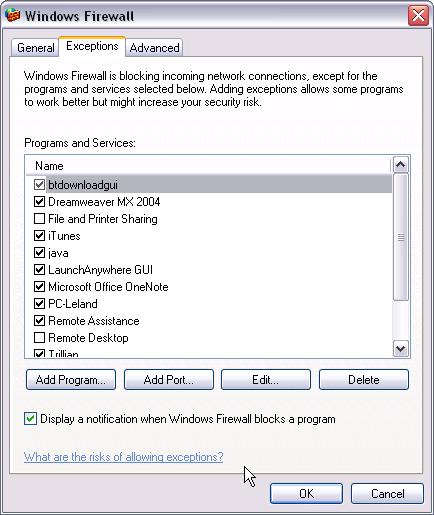
Click on "Add Port"
Name the port exception "TeamSpace FileWarp" and enter in one of the port numbers listed above.
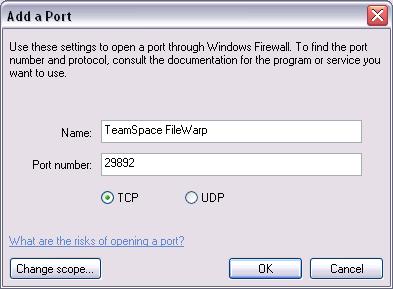
Click OK to all dialog boxes
macintosh OS X firewall configuration
Open System Preferences from the Dock or via Apple Menu>System Preferences
Click on Sharing
Select the Firewall section
Click on "New" to create a new port exception (authenticate if necessary)
Set "Port Name" to "Other"
Enter in one of the port numbers from above
Enter "TeamSpace FileWarp" for the description
Hit OK and close all windows
|